 #advice

Do you ever install freeware from the Internet? If so, do you pay close attention to the installation process, or simply click “Next” without reading the text in the installation window?

If you answered “Yes” in both instances, rest assured you are not alone. The majority of people do the same. This behavior is something that is leveraged by adware developers.
There are times where you install a useful application only to discover that you also inadvertently installed a plugin or toolbar, which alters the home page or search settings. Any attempt to restore previous browser settings are often fruitless – once the OS is rebooted, the toolbar changes them again.
My big fat adware cleaning (or why it's difficult to remove adware from your PC) – http://t.co/LGtUqlKFgL pic.twitter.com/wnSskYlXh2
— KasperskyUK (@kasperskyuk) February 2, 2015
Kaspersky Internet Security tracks and blocks the default change of browser, home page and search, any changes in the proxy server, as well as the installation of extensions, plugins or toolbars.
Once enabled Control of operating system changes, any attempts by an adware program to alter your browser settings would flag you to alow or reject changes.
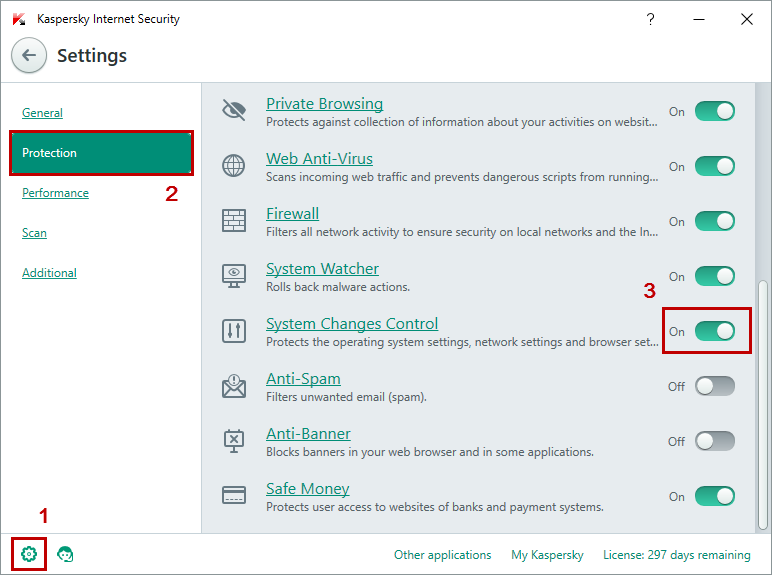
Check out our Knowledge Base to learn more about Control of operating system changes.
 Tips
Tips